How to withdraw fiat on Coinhako
What's Changed — Important Update
We're updating how withdrawal bank accounts are verified on Coinhako to strengthen the security of your fiat withdrawals.
Previously, you could manually add bank account as a withdrawal destination.
Now, manual bank account entry has been removed. Your withdrawal bank account is automatically verified through your deposit history — the only way to register a bank account for withdrawal is to first make a fiat deposit from that account.
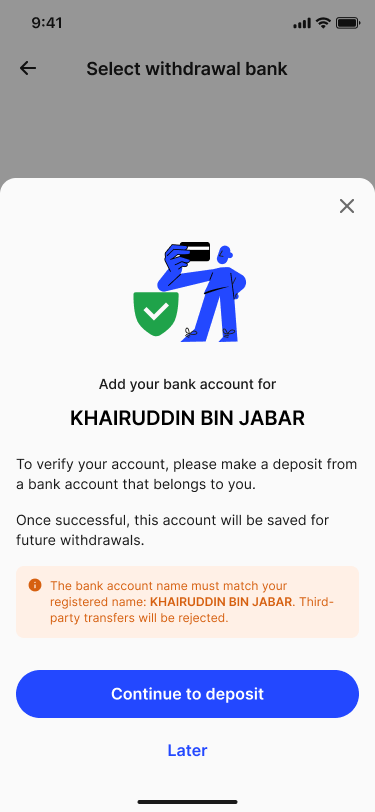
Note: The name on your bank account must match your registered Coinhako name. Deposits from third-party accounts will be rejected and may incur a processing fee.
Step 1 — Get a Verified Withdrawal Bank Account
The process is simple: make a deposit from your bank account → it is automatically registered as your withdrawal destination once your deposit is successfully credited.
Go to Wallet → Withdraw and select your currency (SGD or USD). You'll arrive at the Select withdrawal bank screen.
Note: If you don't see any withdrawal bank accounts, simply make a deposit from your preferred bank account — it will be automatically added once the deposit is successfully credited.
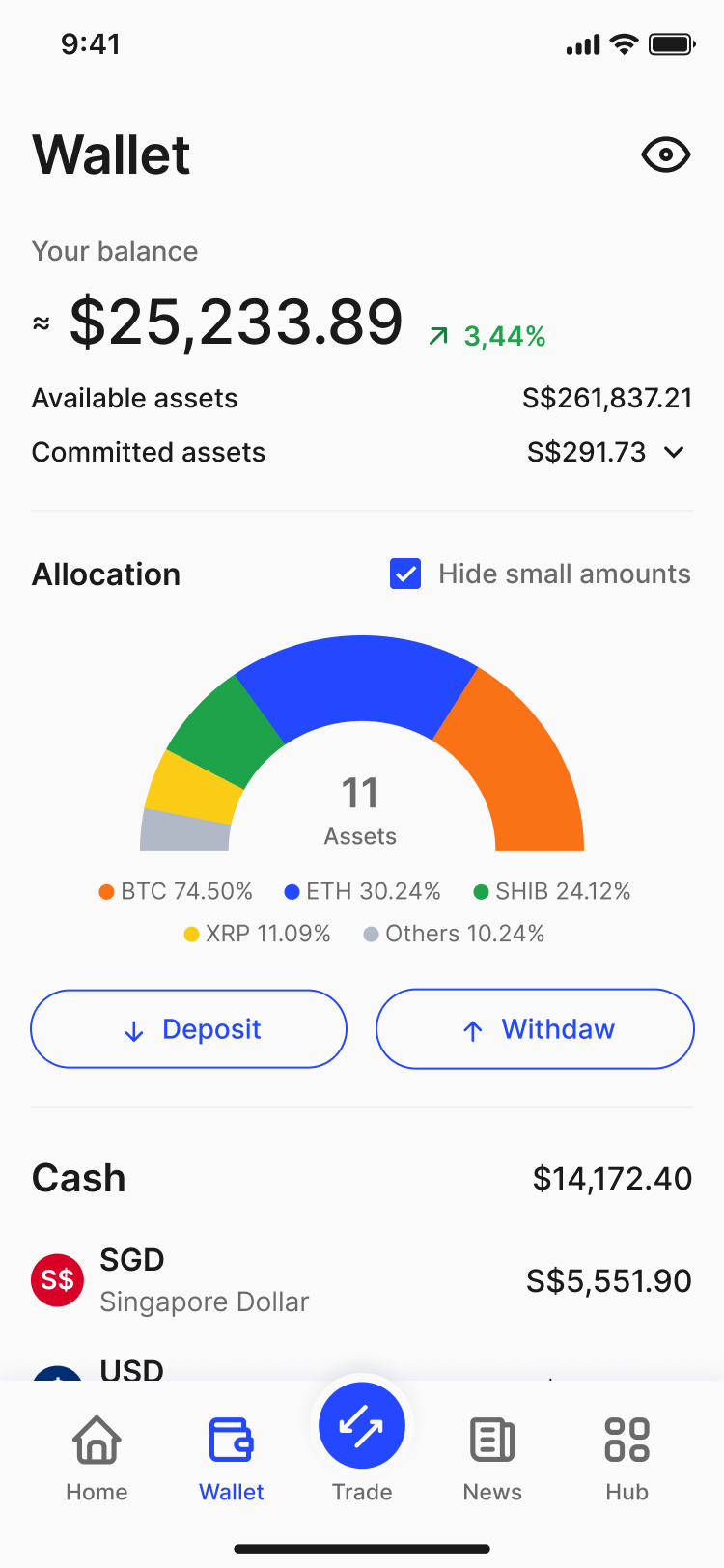
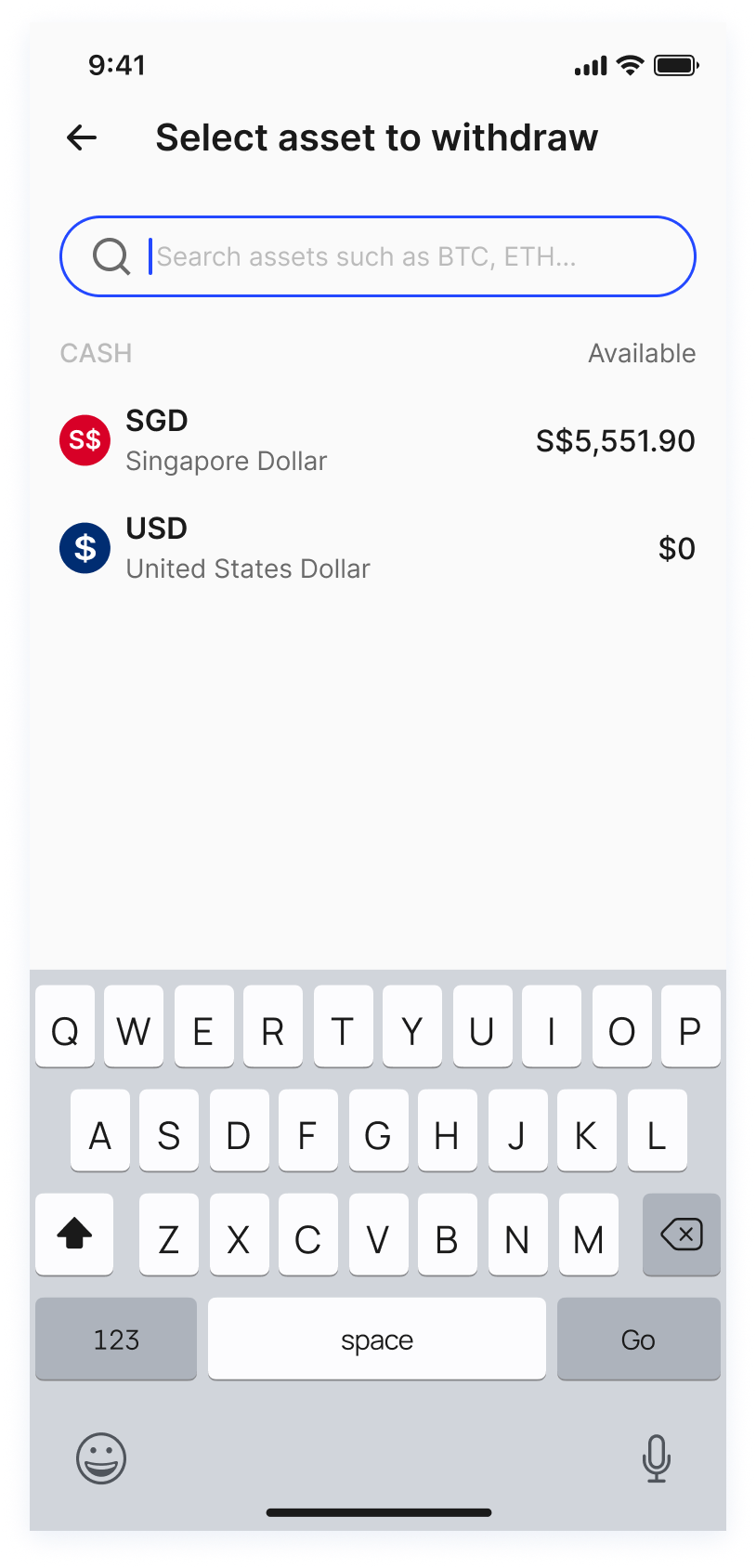
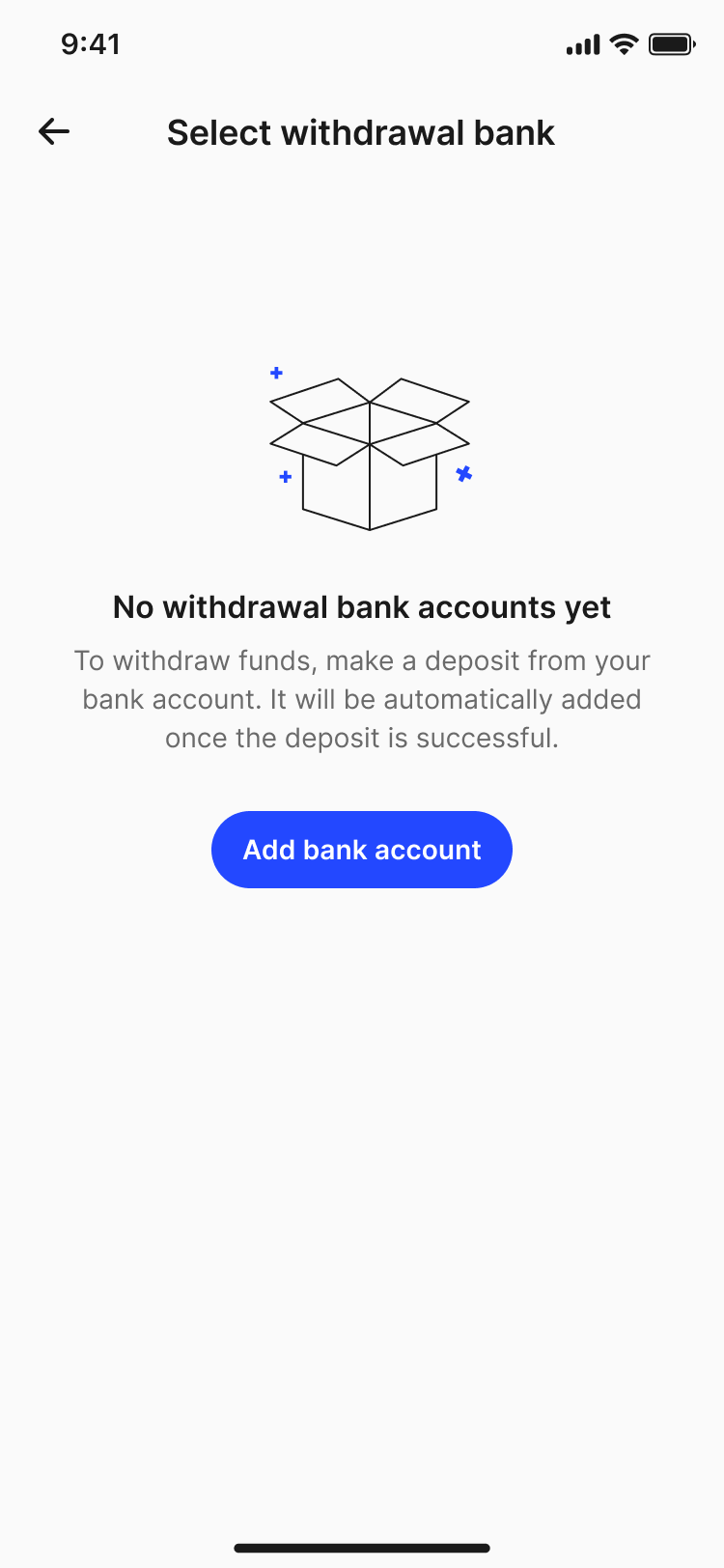
Tap Add bank account, then tap Continue to deposit on the next prompt. You'll be taken through the deposit flow — refer to our How to Deposit Fiat on Coinhako article for the full steps.
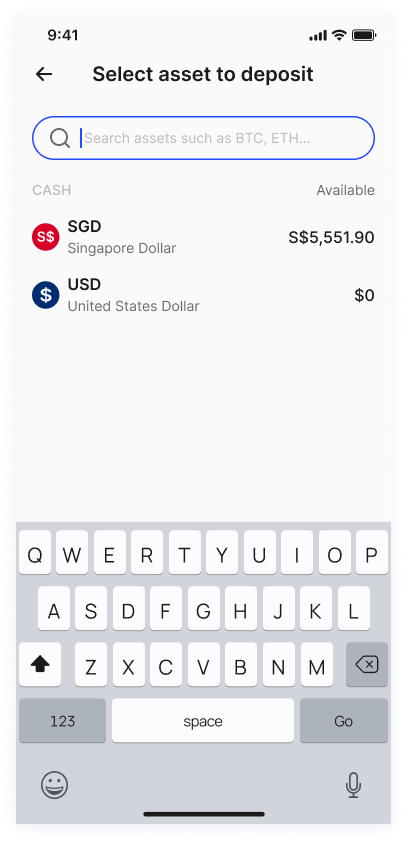
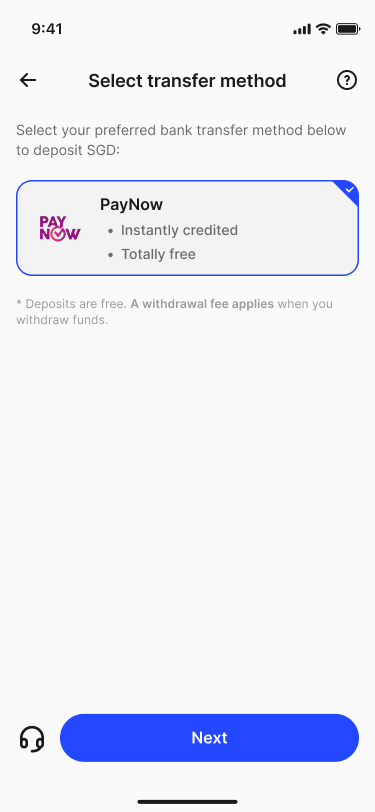
Once your deposit is successfully credited, your bank account will appear automatically in the withdrawal bank list. No further action needed.
Note: To add more bank accounts, simply make a fiat deposit from each of those accounts. You can also manage your withdrawal bank accounts via Profile & Settings → Withdrawal bank(s).
Step 2 — Make a Withdrawal
- Go to Wallet → Withdraw and select your currency (SGD or USD).
- On the Select withdrawal bank screen, choose the bank account you'd like to withdraw to. Tap any account to expand and view full details, including account number, beneficiary name, SWIFT code, and country.
- Enter the amount you wish to withdraw. Your remaining withdrawal limit and balance are shown on screen. You can also use the 25%, 50%, or 75% shortcuts.
- Review the transaction fee and receive amount, then tap Preview Withdrawal.
- Enter the code from your 2FA authenticator app and the verification code sent to your email, then tap Confirm withdrawal.
Your withdrawal will be processed. During high-traffic periods, processing may take longer. If you don't receive your funds within the expected timeframe, please contact our support team and include a screenshot of the transaction and its details.
Withdrawal Limits
Your remaining limit is displayed on screen when you attempt a withdrawal. Withdrawal limits refresh on a rolling 30-day basis. To check your full limit:
- Go to Hub → Profile & Settings
- Select Account information
Can I increase my withdrawal limit?
Yes. Contact our support team to request a limit increase. You may be asked to provide one of the following Proof of Income documents:
- Latest IRAS Notice of Assessment
- Latest 12 months of CPF contribution history
- Income tax statement
- Latest 3 months of salary statements
- Income declaration to a government agency
- Income agreement
- Latest 3 months of bank account statements
Submissions must be a full scanned image or photo in PDF format, with your name, address, and issue date visible. The document must be dated within the last 3 months and displayed in full-page view. Partial images and screenshots will not be accepted.
Frequently Asked Questions
I've never deposited fiat before — can I still withdraw?
You'll need to make at least one successful fiat deposit before a withdrawal bank account can be verified. There is no longer a way to add a bank account manually.
Can I withdraw to someone else's bank account?
No. Only bank accounts in your own name are accepted.
I want to withdraw to a different bank account. What do I do?
Make a fiat deposit from that bank account. Once your deposit is successfully credited, it will be added to your verified withdrawal list automatically.
My previously saved bank accounts are gone. Why?
Under the new system, bank accounts must be verified through a deposit. Make a deposit from that account to re-verify it.
Does Coinhako support PayNow withdrawals?
Not at the moment, but we're actively working to make this available soon.
When does my withdrawal limit reset?
When does my withdrawal limit reset?
Your withdrawal limit refreshes on a rolling 30-day basis -- not at the start of each calendar month.